DevTools
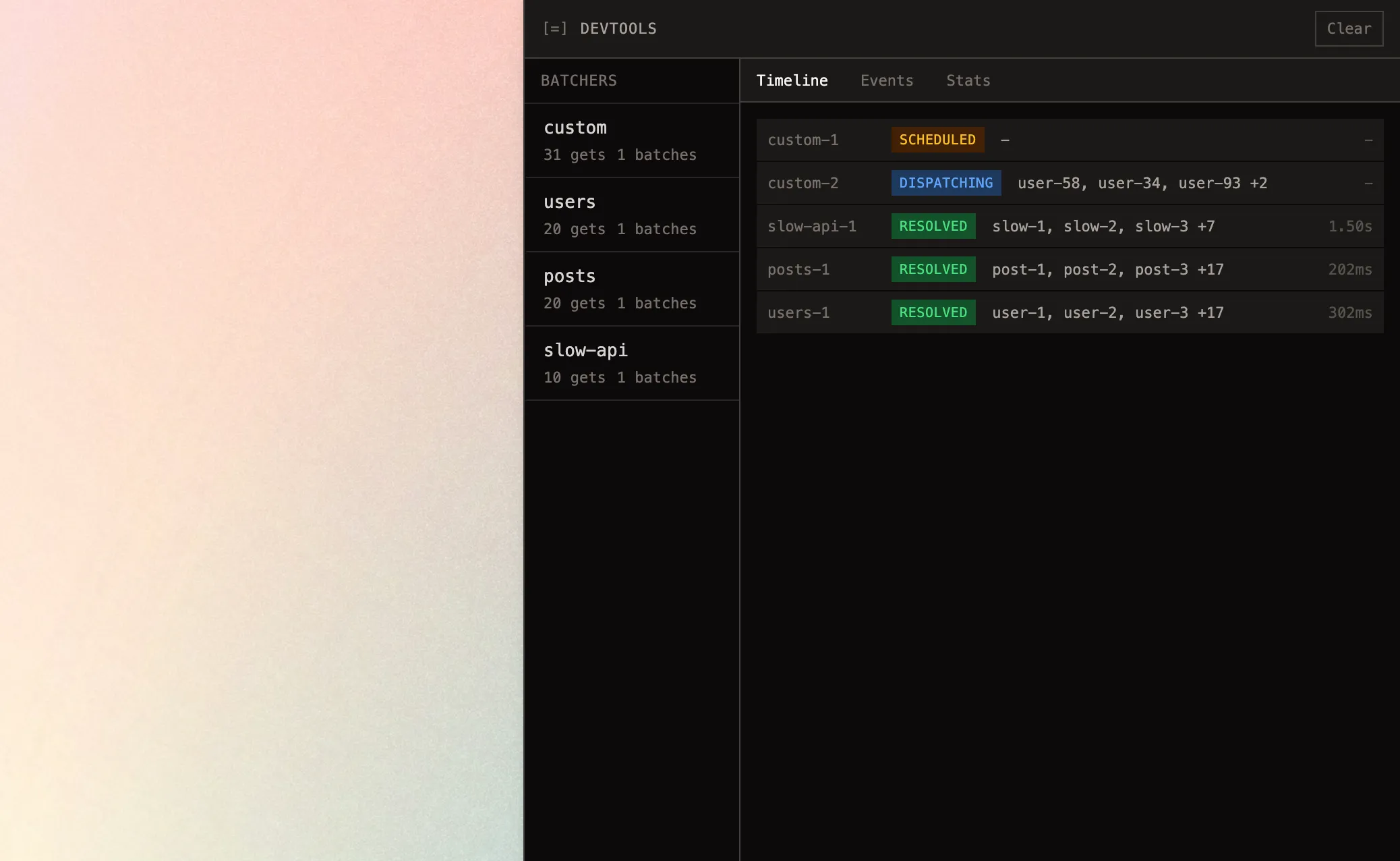
See how your requests are being batched and scheduled in real-time in a browser environment. For non-browser usage, see the server-side tracing section in the guide.
Installation + Setup
React
Mount the DevTools component at the root of your app, all options are exposed as individual props.
import { BatchkitDevtools } from 'batchkit-devtools-react';

function App() {
  return (
    <>
      <YourApp />
      <BatchkitDevtools
        buttonStyle={{ bottom: '80px', right: '80px' }} buttonClassName="my-custom-class"
      />
    </>
  );
}
Svelte
Import and render in your component. All options are exposed as individual props.
<script>
  import { BatchkitDevtools } from 'batchkit-devtools-svelte';
</script>

<BatchkitDevtools
  buttonStyle={{ bottom: '80px', right: '80px' }}
  buttonClass="my-custom-class"
/>
Vanilla
If you are not using React or Svelte (or any library at all), you can manually mount the devtools into a DOM element by passing the container to the mount function. Options are accepted as the second argument.
import { mount } from 'batchkit-devtools';

const container = document.createElement('div');
document.body.appendChild(container);

mount(container, {
  position: 'right',    // 'right' | 'left' | 'bottom'
  defaultOpen: false,   // start open?
});
How It Works
DevTools automatically trace all batchers created in your app by hooking into the core library. batchkit checks if the devtools are mounted before doing extra work.
Unnamed batchers appear as unnamed-1, unnamed-2, etc. You can learn more about where these batchers were defined in the trace tab, but for better labels, provide a value for the name option:
const users = batch(fetchUsers, 'id', { name: 'users' });
//                                      ^^^^^^^^^^^^^
What You’ll See
| Tab | Description |
|---|---|
| Batchers | All batchers in your app, with request counts |
| Timeline | Each batch with its status, keys, and duration |
| Events | Full trace log: get, dedup, schedule, dispatch, resolve, error, abort |
| Stats | Totals, deduplication rate, average batch size and timing |
| Trace | Function source and file location for the selected batcher |
Filtering to a specific batcher
Click a batcher name in the sidebar to filter Timeline, Events, and Stats to just that batcher. Click again to deselect the batcher and view all logs again.
Resetting the devtools state
The Clear button at the top right of the panel will reset the devtools state to its initial values. This is irreversible.
Options
The HTML class related attributes have React-specific variants to be idiomatic.
| Option | Type | Default | Description |
|---|---|---|---|
position | 'right' | 'bottom' | 'left' | 'right' | Which edge of the screen the panel docks to |
defaultOpen | boolean | false | Start with the panel open |
buttonStyle | CSSProperties | — | Inline styles for the toggle button |
buttonClassName | string | — | CSS class for the toggle button (React) |
buttonClass | string | — | CSS class for the toggle button (Svelte/Vanilla) |
panelStyle | CSSProperties | — | Inline styles for the panel |
panelClassName | string | — | CSS class for the panel (React) |
panelClass | string | — | CSS class for the panel (Svelte/Vanilla) |
Bundling
DevTools are excluded from production bundles automatically. They only are added to the bundle when process.env.NODE_ENV === 'development'. This should work out of the box with most bundlers (Vite, Webpack, ESBuild, Rollup, etc).
Troubleshooting
The devtools UI is built with SolidJS. In some cases you may need to override module resolution of SolidJS for compatibility.